EXTENDS VM GENERAL

VM PAC — Content Guide

This site is the VM General base plus the candidate database. This page documents only the PAC additions and changes — for everything else (standard blocks, News/Actions/Team/Videos/Quotes, site settings) use VM General.

What this site adds on top of the base

Everything in VM General works here unchanged. On top of it, the PAC site adds the candidate ("Mama") database and a few extra building blocks.

The PAC‑only additions at a glance

  • Mamas and Victories — the candidate database, normally filled by the spreadsheet importer.
  • Jobs — job postings, with their own page and a listing block.
  • New blocks: Cards slider, Job listing, Multi‑Column Stats, Mamas filters.
  • Upgraded blocks: Hero (now supports video, incl. muted autoplay in the tile), Cards Slider (optional "View all" button), Call to Action (optional image), Section with Side Menu (auto table‑of‑contents), Quote Slider (real carousel), Body Text (can join the side menu).
  • New site setting: a Theme Color switch (Blue / Pink) and a Page for jobs reference. The footer newsletter posts to Action Network.
How to read this page: blocks and fields below are tagged NEW (PAC‑only), CHANGED (exists in the base but behaves differently here), or PLUGIN (provided by the VM Import Mamas plugin).

New & changed blocks

Only blocks that differ from the base are listed. Screenshots will be added later. Jump to one:

Cards Slider acf/cards-slider NEW

A swipeable carousel of cards. On PAC it can show Mamas (candidates) as well as the usual content types.

Cards Slider block
Cards Slider block
FieldTypeHow to fill it
TitleRich textSlider heading.
TextTextShort intro beside the title.
Cards typeSelectNews, Actions, Team, Video or Mamas.
Cards autoToggleOn = pull items automatically (for Mamas: current + previous‑year winners); Off = pick by hand.
Cards countNumberHow many to show in auto mode (empty = all).
CardsRelationshipHand‑picked items (News, Video, Team or Mamas) when auto is off.
Button NEWLinkOptional "View all" button shown in the top‑right of the slider (e.g. linking to the Our Mamas page). Leave empty to hide it. On phones it appears under the slider instead.
Victories titles: in this slider each candidate shows just their office level and district — the state is intentionally hidden here. The state still shows in the full Our Mamas listing.
Job Listing acf/job-listing NEW

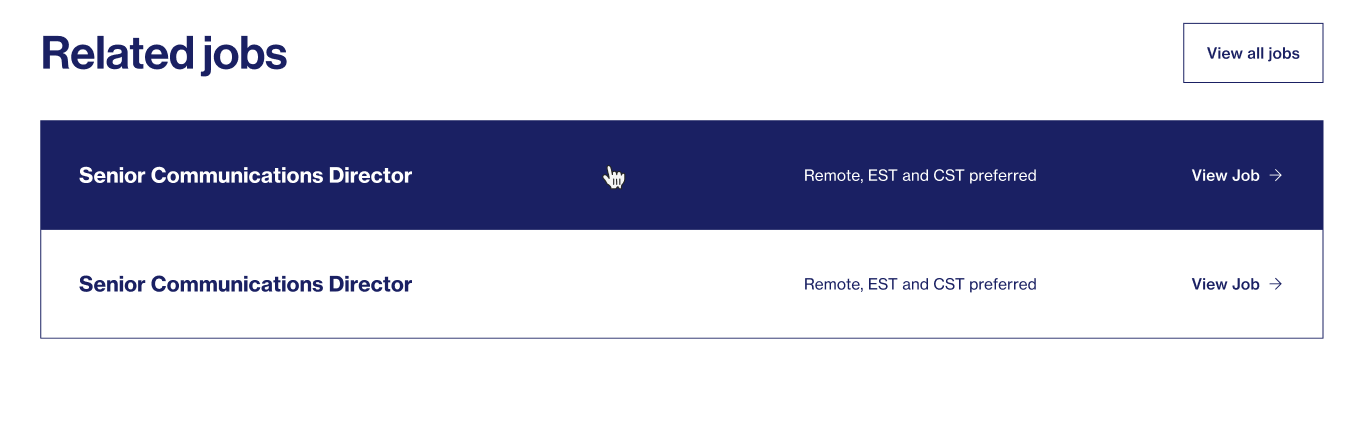
A grid of job‑posting cards with a heading and a button. Pulls from the Jobs content type.

Job Listing block
Job Listing block
FieldTypeHow to fill it
TitleRich textSection heading.
JobsRelationshipPick the Job entries to display (shows each job's title and location).
ButtonLinkOptional call‑to‑action button.

Multi‑Column Stats acf/multi-column-stats NEW

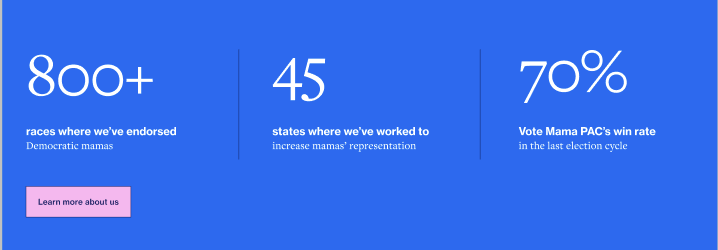
A row of up to three statistics (a big number plus a description) on a dark background, with an optional button.

Multi-Column Stats block
Multi‑Column Stats block
FieldTypeHow to fill it
StatsRepeaterAdd a row per statistic. Each has a Title (the big number/figure) and a Text (description).
ButtonLinkOptional button under the stats.

Mamas Filters acf/mamas-filters NEW

The interactive candidate browser: tabs for current candidates vs. past‑year victories, a search box and filter dropdowns (by State and Office level), with "load more". Everything is generated automatically from the Mamas database.

Mamas Filters block
Mamas Filters block
FieldTypeHow to fill it
IDTextOptional anchor — there is nothing else to configure.
Place this block on the page where you want the full candidate listing. The years, states and office filters all come from the imported data — no manual setup.

Hero acf/hero CHANGED

Same hero as the base, but it can now show a video instead of a still image, and has an extra image size.

FieldTypeHow to fill it
TitlerequiredRich textMain heading.
TextRich textIntro paragraph.
ButtonLinkOptional CTA.
ImageImageSide image (also used as the video poster).
External video new hereURLA YouTube link — shows a play button that opens the video in a pop‑up.
Local video new hereFileOr an uploaded video file instead of a YouTube link.
Autoplay video in tile NEWToggleWhen on, the video plays automatically (muted) inside the hero tile instead of showing the image and "Play video" button. The tile is no longer clickable; visitors can turn the sound on with the button in the bottom‑right. Works with YouTube, Vimeo, Facebook and uploaded files; it loads only when scrolled into view to keep the page fast.
Image sizeSelectLarge, Small, Vertical or Bottom (the Bottom option is new, used for job pages).
Hero backgroundSelectDark or Light. Default: Dark.
What changed vs base: the External video and Local video fields and the pop‑up player are new, there's a new Bottom image size, and an Autoplay video in tile toggle. If you leave both video fields empty, it behaves exactly like the base hero.
Facebook + sound: Facebook videos can autoplay muted in the tile, but Facebook doesn't allow unmuting from our button, so the sound control is hidden for them. Use YouTube, Vimeo or an uploaded file if visitors need to turn sound on.

Call to Action acf/call-to-action CHANGED

The base Call to Action, with an optional image variant.

FieldTypeHow to fill it
TitlerequiredRich textHeading.
TextrequiredRich textBody copy.
ButtonrequiredLinkThe action button.
Image new hereImageOptional. Adding one switches to a layout with the image beside the text.
What changed vs base: the optional Image field and its layout are new. Without an image it matches the base block.

Section with Side Menu acf/section-with-sidemenu CHANGED

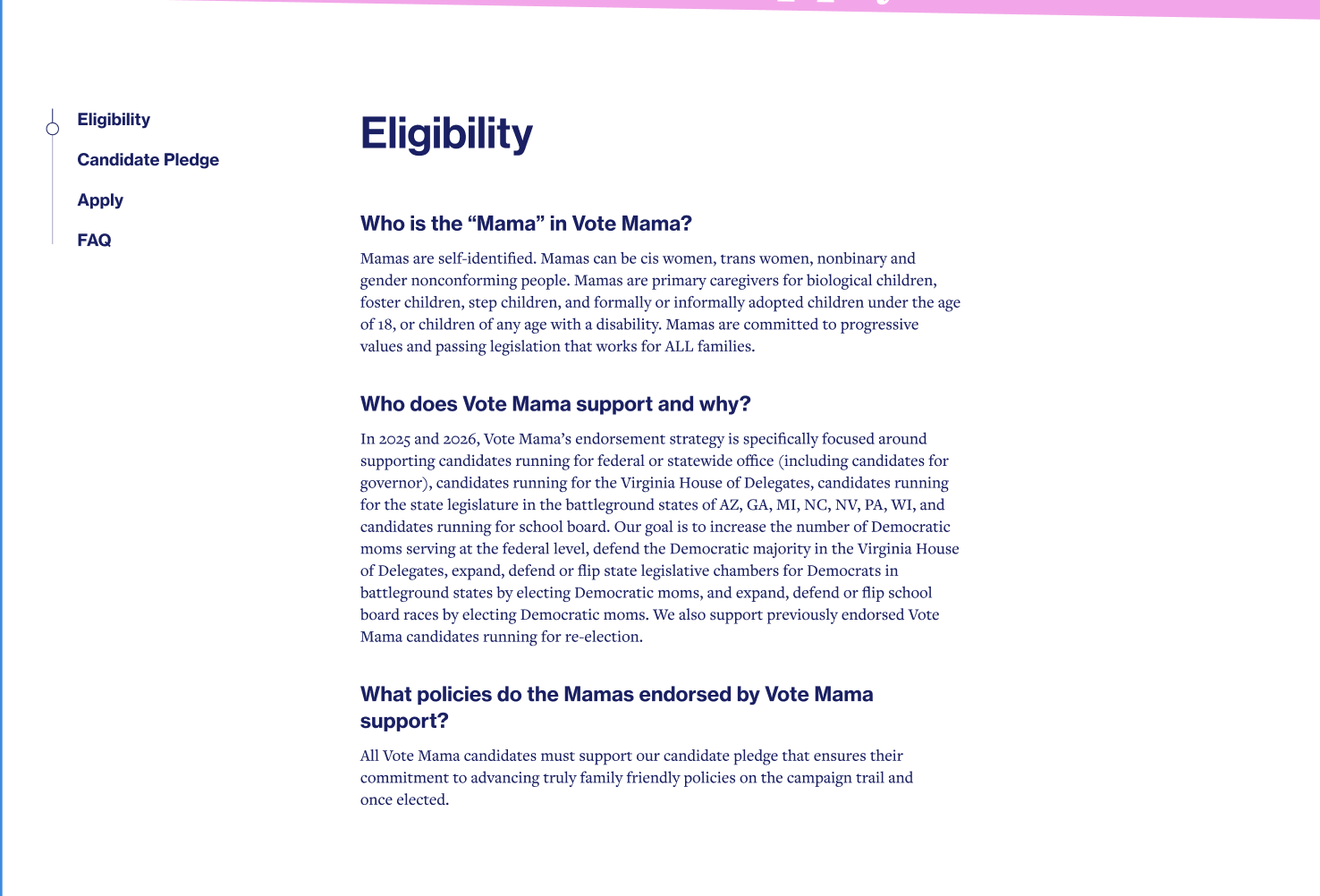
A container with a sticky side navigation that doubles as a "table of contents". You place other blocks inside it, and the side menu is built automatically with a scroll‑progress indicator.

Section with Side Menu on the page
On the page — the sticky side menu / table of contents next to the content
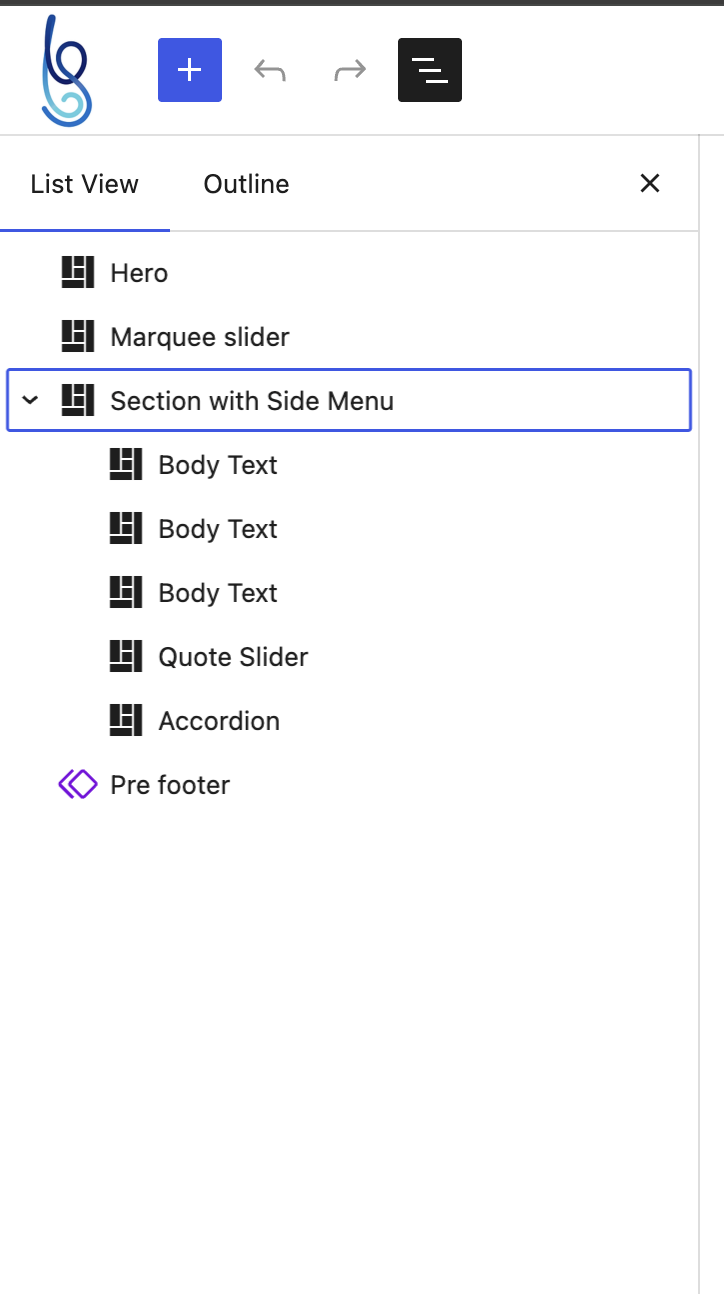
Section with Side Menu in the editor List View
Editor List View — the block holds other blocks inside it (here: Body Text ×3, Quote Slider, Accordion)
Field / partTypeHow to use it
MenuRepeaterOptional manual side‑menu items (each a Link, usually an in‑page #anchor).
(content)Inner blocksAdd the page sections inside the block. Use the + button within the block, or drag blocks into it in the List View (shown above).
This is a "block inside a block". Open the editor's List View (top‑left icon) to see and reorder the nested blocks. Give each nested section an ID (or turn on its With menu option where available) so the side menu can link to it.

Quote Slider acf/quote-slider CHANGED

Same fields as the base (pick Quotes to show), but on PAC it's a real swipeable carousel with previous/next arrows.

FieldTypeHow to fill it
QuotesrequiredRelationshipPick the Quote entries, in order.
What changed vs base: behaviour only — it now scrolls as a carousel with navigation arrows. Content is still managed on each Quote entry.

Body Text acf/body-text CHANGED

The base Body Text, with one extra option so it can register itself into a Section‑with‑Side‑Menu table of contents.

FieldTypeHow to fill it
TextrequiredRich textYour copy.
ButtonLinkOptional button.
With menu new hereToggleWhen on, this section is added to the side menu of a surrounding Section with Side Menu.
Not ready yet: three blocks exist in the editor but have no content fields and don't render anything: Columns text, Image with legend and Stats. Don't use them until they're finished.

Jobs

A content type for job/career postings. Each Job opens on its own page (with a details table and an "Apply" button) and can be listed with the Job Listing block.

Content type Jobs job NEW on PAC

FieldTypeWhat it controls
TitleBuilt‑inJob title.
ContentEditorFull job description.
Featured imageBuilt‑inOptional hero image.
LocationTextWhere the role is based.
SalaryTextPay/range.
TypeTexte.g. Full‑time, Part‑time, Contract.
Close DateDateApplication deadline.
Apply urlURLWhere the "Apply" button sends applicants.
The "Back to jobs" link on a single Job goes to the page you choose under Settings → Pages → Page for jobs.

Mamas & Victories

The heart of the PAC site: the candidate database. It's provided by the VM Import Mamas plugin and is normally populated from a spreadsheet (see Importing Mamas) — but you can also edit any record by hand.

Mama = one candidate

A person: name, photo, bio, quote, social links, and — if she's running right now — her current candidacy (year, office, state, district).

Victory = one past win

A single election win (year + office + state + district) linked to a Mama. A candidate can have several. These power the "winner" ribbons on cards.

How candidates are grouped (taxonomies) PLUGIN

NameSlugMeaning
StatesstateUS state. Created automatically during import.
Office Levelsoffice_levelThe office sought/won, grouped (Federal → President / Senate / U.S. House; Statewide → Governor; State Leg → State Senate / State House; Local → Mayor / Local; School Board; Judicial). Each term has a Sort priority number that controls the order on the public list.
Victory Yearsvictory_yearThe year of a win. Set automatically from each Victory's Year — you normally never edit it.
Please confirm with the developer: the site also contains some older candidate taxonomies defined separately in ACF (Candidates, Levels, Victories). The cards and the importer use the three above (State / Office level / Victory year). The older ones may be leftovers to clean up.

Editing a Mama by hand PLUGIN

Open Mamas → All Mamas → (a candidate). The fields below are what the import fills in — you can adjust them manually too.

FieldTypeWhat it is
First nameTextGiven name.
Last nameTextSurname (used for alphabetical sorting).
BioRich textShort biography.
QuoteText areaA pull‑quote.
ImageImageProfile photo (also the post's featured image).
Slider imageImageOptional transparent‑background card image. Never overwritten by the import — safe to set by hand.
Current candidacy (only if she is running now)
Currently runningToggleOn = appears under "Current Candidates".
YearNumberElection year.
Office levelSelectThe office she's running for.
StateSelectHer state.
District / seatTexte.g. CA‑12.
Office label overrideTextOptional custom display name for the office.
Contact & socials
Website, Email, Phone, Facebook, Instagram, Twitter/X, LinkedIn, YouTube, TikTok, Pinterest, BlogURL / textEach shown as a contact icon/link where available.

Editing a Victory by hand PLUGIN

Under Mamas → Victories. Each record is one win linked to a Mama. The title is generated automatically (Name — Year — Office — State).

FieldTypeWhat it is
MamarequiredPost objectThe candidate who won.
YearrequiredNumberYear of the win (also fills the Victory Year taxonomy).
Office levelrequiredSelectOffice won.
StaterequiredSelectState.
District / seatTextOptional.
Office label overrideTextOptional display name.

"Promote to Victory" (yearly rollover) PLUGIN

When a current candidate wins, you don't have to re‑import. On her edit screen there's a sidebar box "Yearly rollover" with a "Promote to Victory" button.

  • It copies her current candidacy into a new Victory record (or updates the matching one), then turns off "Currently running" so she leaves the current‑candidates list.
  • The button only works when Currently running is on and Year, Office and State are all filled — otherwise it shows a reminder.
  • After clicking, a notice confirms whether a Victory was created or an existing one updated.

Importing Mamas (spreadsheet)

The fastest way to load or refresh the candidate database. You upload an Excel file and the plugin creates/updates all the Mamas and Victories for you.

Before you start — PHP version. The importer's libraries require PHP 8.3 or newer. If the import screen shows a "critical error", ask the developer to set the site's PHP version to 8.3+ (in Local: the site's settings → PHP version). Editing/saving Mamas by hand is unaffected.

Where it is

Menu pathWhat it does
Mamas → ImportThe main Excel importer for Mamas + Victories ("Import Mamas").
Mamas → Import TeamA separate tool that pulls the "Motherboard" team members from votemamapac.org into Team records. (Needs the Team content type to exist.)

Step by step

  1. Prepare the Excel file.xlsx only (CSV is not accepted). A sample is bundled with the plugin: VM Website Mamas Sheet (2).xlsx. Use it as your template.
  2. Open Mamas → Import. The "Active Excel file" box shows which file will be used.
  3. Upload your file in the "Upload a new Excel file" section (it becomes the active file).
  4. Choose the options (see below) — usually leave both checkboxes on.
  5. Click "Start full import", confirm, and keep the tab open. A progress bar runs "Importing Mamas" then "Importing Victories".
  6. Read the summary — it reports created / updated / skipped counts and any warnings or errors.
Re‑importing is safe. Candidates are matched by Full name, so running the import again updates existing records instead of creating duplicates.

Options on the import screen

OptionDefaultMeaning
Skip records that already existOnOnly insert brand‑new rows; leave existing Mamas untouched. Turn off to update everyone from the sheet.
Skip image importOnDon't re‑download photos (much faster). Turn off only when photos changed. Photos that already exist are skipped anyway.
Office‑level order: Dry runPreview what the sort‑order fix would change. Writes nothing.
Office‑level order: Re‑applyRe‑apply the agreed office ordering (President → Senate → House → Governor → … → Judicial). Safe to run anytime; touches only sorting.
Both checkboxes are ticked by default. That default is meant for a quick "add only new people" run — it does not change anyone who already exists. For the yearly refresh below you must untick "Skip existing".

Updating every year (recommended) how it works

The database is best kept current by re‑importing an updated spreadsheet once per election cycle, rather than editing hundreds of records by hand. Here's exactly what to do.

  1. Move finished races into wins. In the spreadsheet, for every candidate whose race has ended and who won, add a row on the Victories tab: Full name, Year, Office Level, State (and District if relevant).
  2. Set the new cycle on the Mamas tab. For each candidate: if she's running again, set Is Current Candidate = Yes and fill the new Current Year / Current Office Level / Current State / Current District. If she's not running this cycle, set Is Current Candidate to No (or leave it blank) so she drops off the "Current Candidates" list.
  3. Add new candidates as new rows (new Full name).
  4. Import with these options:
OptionSet toWhy
Skip records that already existOFF (untick)So existing candidates are updated with their new candidacy and any new wins. If you leave it on, only brand‑new names are added and everyone else stays last year's version.
Skip image importON (unless photos changed)Much faster. Photos that already exist are skipped anyway, so only turn it off when you've added/replaced pictures.

After importing, optionally click Re‑apply level order to refresh the office sorting.

The spreadsheet is the source of truth. A yearly import with "Skip existing" off overwrites each candidate's current candidacy and social links with whatever the sheet says — so any of those edited by hand in WordPress will be replaced. Two things are safe: the Slider image is never touched by the import, and Victories never duplicate (they're matched by candidate + year + office + state), so re‑running is safe.
One‑off alternative: to roll a single winner over without re‑importing, open her record and use "Promote to Victory" — it copies her current candidacy into a Victory and switches off "Currently running".

The spreadsheet columns

The importer auto‑detects the layout. If the workbook has tabs named Mamas and Victories, it uses those; otherwise it reads a single combined sheet. Column headers must match exactly.

"Mamas" tab

Column headerGoes to
Full name reqCandidate name (and the key used to avoid duplicates).
First name / Last nameName fields (Last name = sorting).
Bio / QuoteBio and pull‑quote.
Image URLProfile photo — a normal URL or a Google Drive share link (auto‑downloaded).
Is Current CandidateMarks her as currently running (Yes/No/1/0/…).
Current Year / Current Office Level / Current State / Current District / Current Office LabelHer current‑candidacy details (terms are created if new).
Website, Email, Phone, Facebook, Instagram, Twitter, LinkedIn, YouTube, TikTok, Pinterest, BlogThe matching contact/social field.

"Victories" tab

Column headerGoes to
Full name reqWhich Mama this win belongs to (row skipped if no match).
Year reqYear of the win.
Office Level req / State reqOffice and state (terms created if new).
District / Office LabelOptional seat and display name.
Combined (legacy) layout: one sheet where each row has both the candidacy and a comma‑separated list of past wins (columns like Year of victory, State of victory, Level/Office/District of victory). Each entry in Year of victory becomes one Victory. Prefer the two‑tab layout when you can.

What the summary shows

  • Mamas — created / updated / skipped
  • Victories — created / updated / skipped
  • Images — imported / skipped
  • Warnings (e.g. a photo that failed to download) and Errors (e.g. a row missing "Full name", or a Victory whose Mama doesn't exist).

Settings differences

The General options screen is the same as the base, with these PAC additions. For all the other tabs (Header, Footer, Pages, Modal) see VM General → Site settings.

Theme Color tab NEW

FieldTypeWhat it controls
Theme ColorSelectBlue or Pink — switches the site's accent colour. Default: Blue.

Pages tab — new entry

FieldTypeWhat it controls
Page for jobs NEWPageTarget of the "Back to jobs" link on a single Job page.

Footer newsletter

The footer newsletter sign‑up on PAC submits to Action Network. The Newsletter title and Newsletter text fields (Footer tab) control its wording.

If newsletter sign‑ups aren't arriving in Action Network, it's a configuration issue (the API key) — flag it to the developer.

Modal tab

Possibly unused on PAC: the Modal fields still exist in settings, but the section‑switch confirmation pop‑up was removed from the PAC header. Filling them in may have no effect here — confirm with the developer before relying on it.